Before doing this, follow the printer configuration guide and ensure the paper has been loaded. Once this is done, the next step is to connect the printer to the computer and configure the BadgeIt printing software.
The printer setup is being demonstrated on Windows 11, but the same process will work on Windows 10.
Labelling your PC #
Apply sticker labels to identify your PC, and the printer it is used for. In this example, we have PC1, controlling Printer 1 (print server).
⚠️ Make sure that the printer label matches the one on the printer you have set up during the first part of this guide.

Setup preparation #
Before starting the setup process, make sure you download two things:
C4000 printer drivers
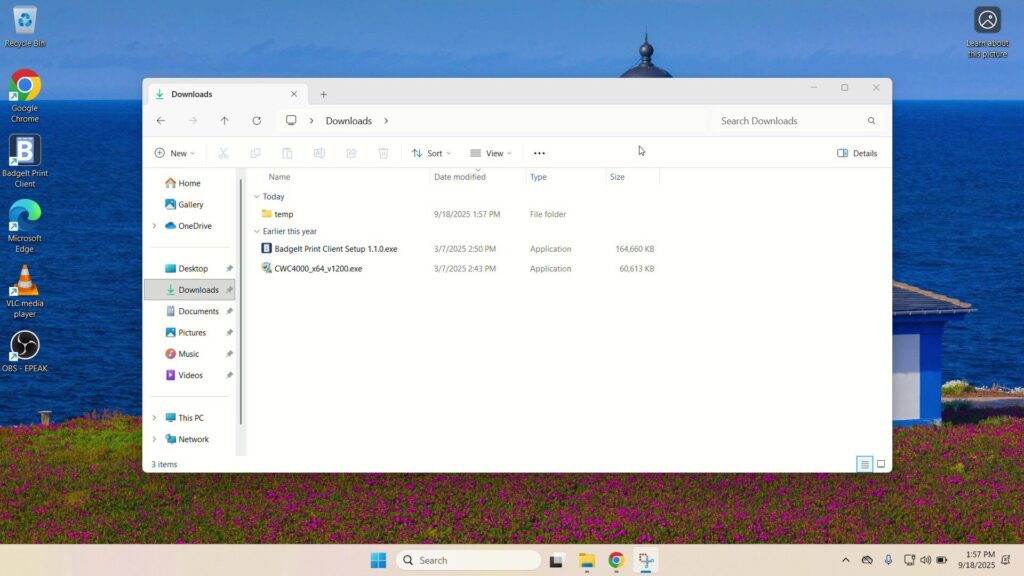
Your BadgeIt laptop has been shipped with the latest C4000 printer drivers in the Downloads folder.
In the unlikely event it hasn’t, the printer drivers can be obtained from the Epson website.
BadgeIt print client installation file
Your BadgeIt laptop has been shipped with the latest BadgeIt Print Client in the Downloads folder.In the unlikely event it hasn’t, download it from here or reach out to your BadgeIt representative.