
Removing the old printer(s) #
Before installing the drivers, all existing printers should be removed to avoid conflicts.
⚠️Even if it looks like the correct printer is already installed, do not skip this step. Reinstall it from scratch, so that you can be sure of how it was done.
To remove existing printers, search for “printer” using the Windows key or start menu
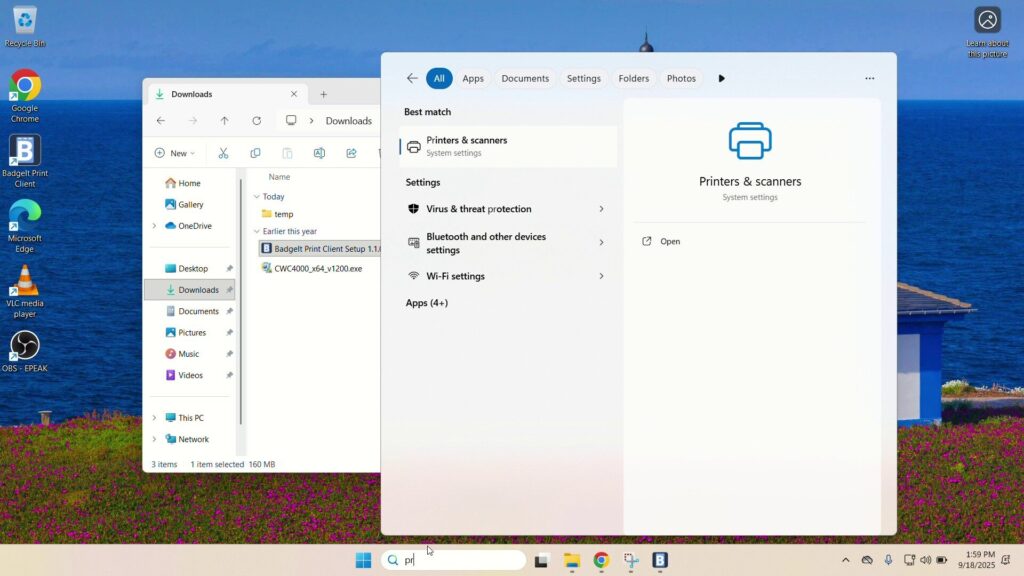
- In the printer menu, select any existing printers and click “remove”.
- Printers like the “printer PDF” and “OneNote printer” that Windows provides should be kept untouched.

Installing the printer driver #
⚠️Do not click “Add device” to install the printer. Instead, install it by running the Epson driver installation executable.
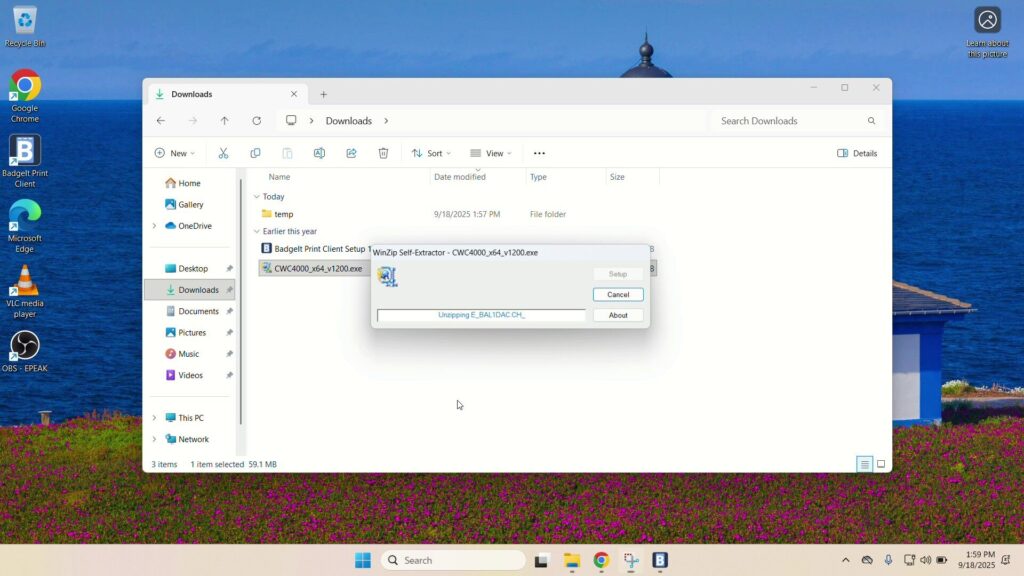
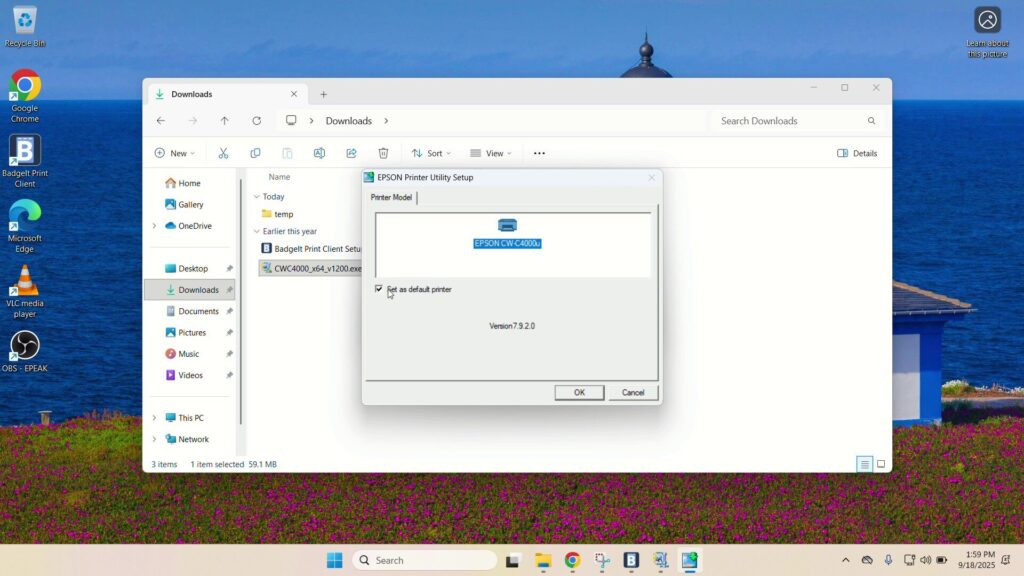
Make sure it is the correct driver & set the printer as default.
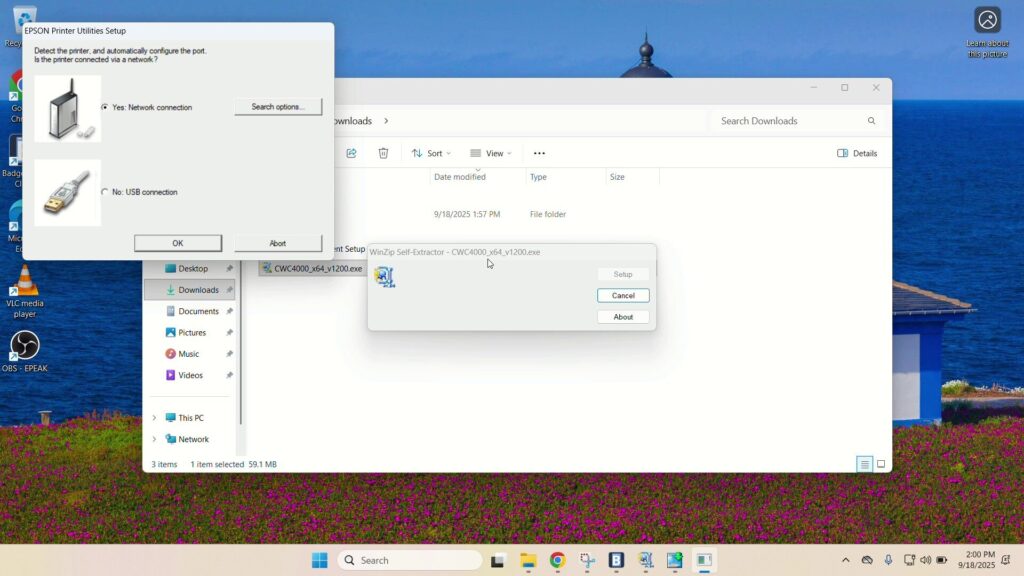
During the printer setup, select Network when prompted, since the printer will be on the network.
⚠️Check that you have the correct printer, by comparing the MAC Address in the software to the one displayed on the printer label at the back.
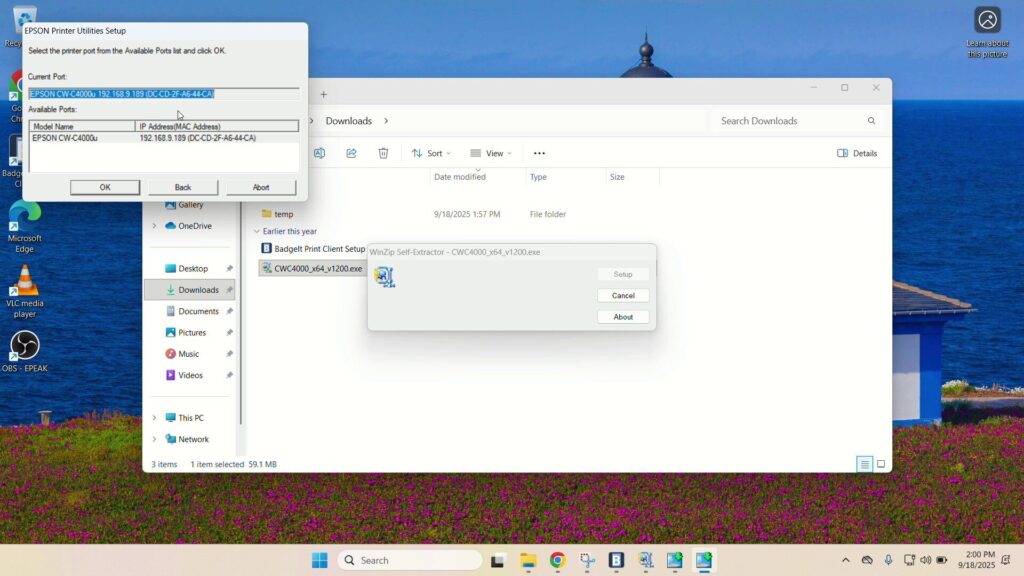
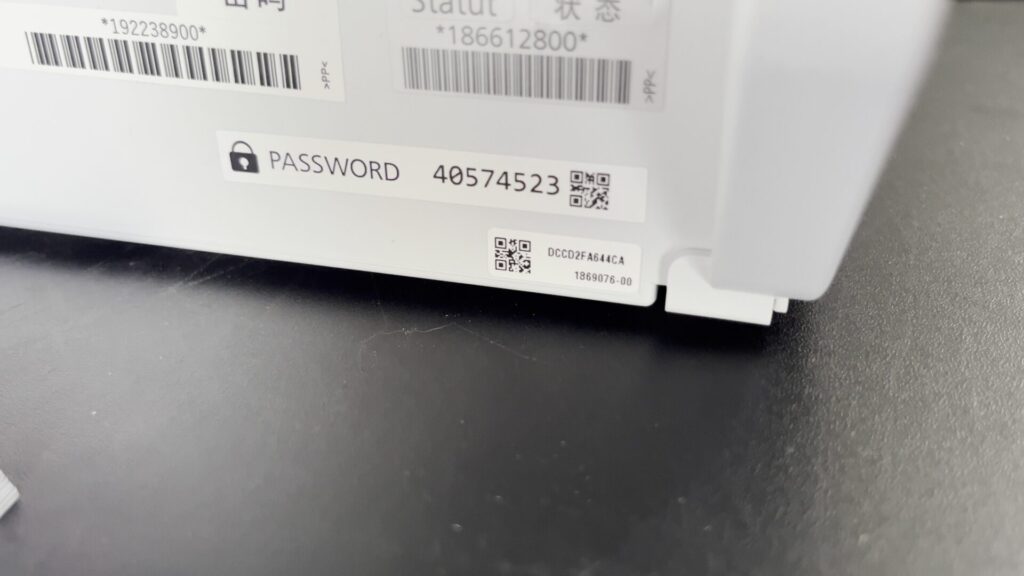
Finish the setup and click OK. Your printer drivers have been installed properly.
