
Installation of the Badgeit! print client #
The BadgeIt! print client should be installed first by double-clicking the installer, which is usually a quick process.
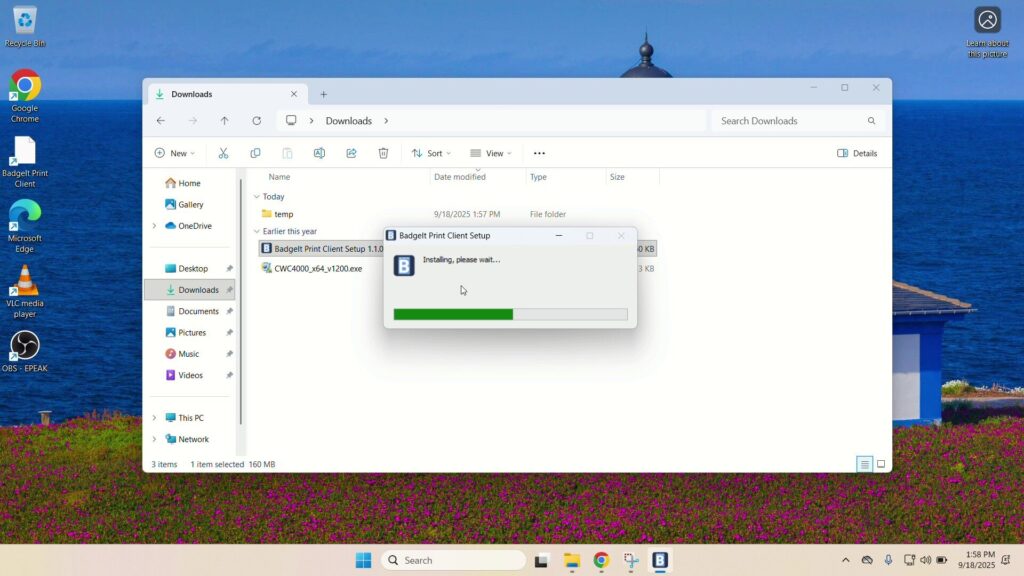
After the installation is complete, you can check that the client is successfully installed and connected to the internet, if it opens right away and displays the page below.
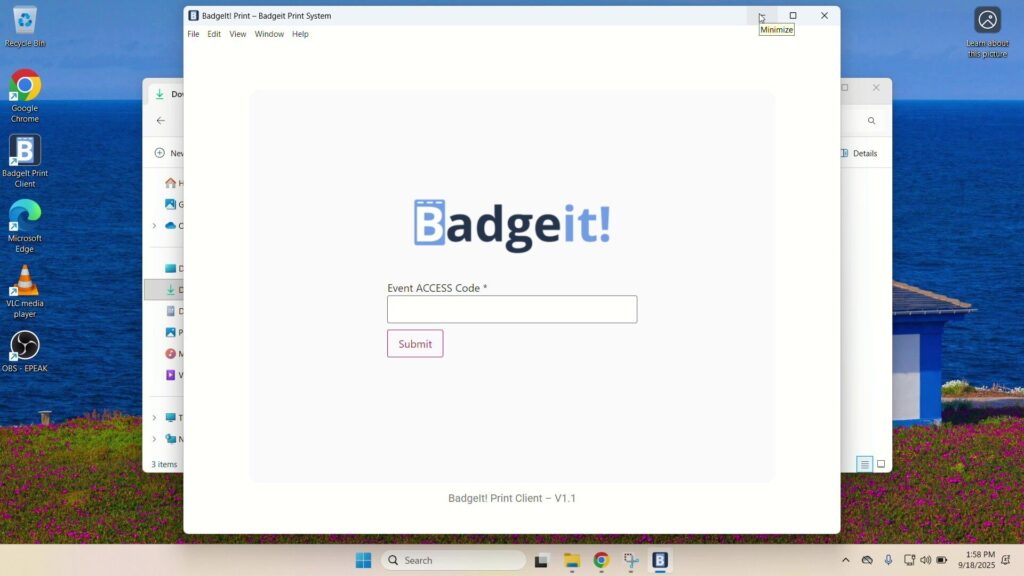
Configuration of the BadgeIt! printing client #
Enter your event access code. Next, the print client will list the available printers for the event.
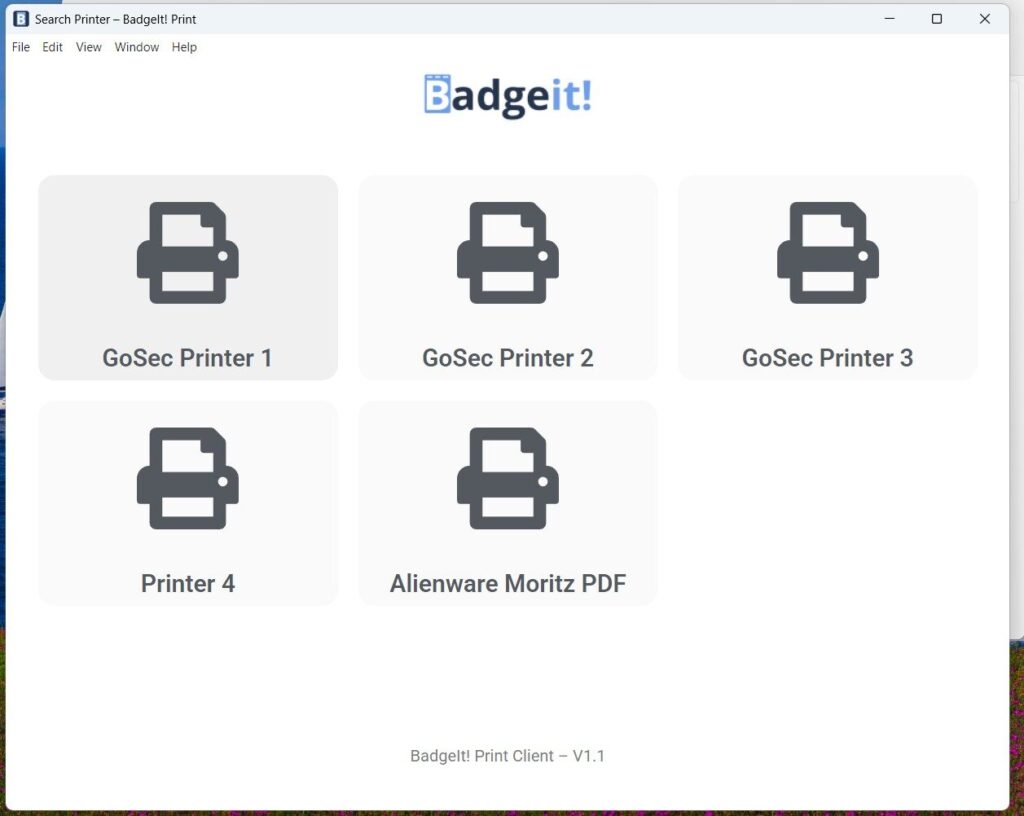
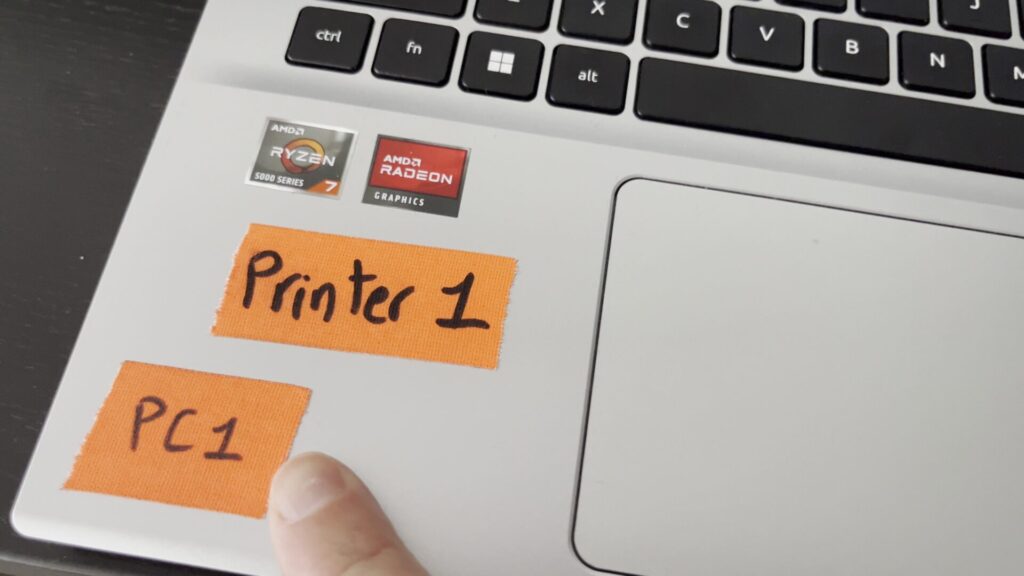
Select the printer that corresponds to your PC. To make sure you have the correct printer, check the label on your PC and the printer (e.g., “Printer 1“).
Then, the printing client will load the list of print jobs in the queue for this printer.
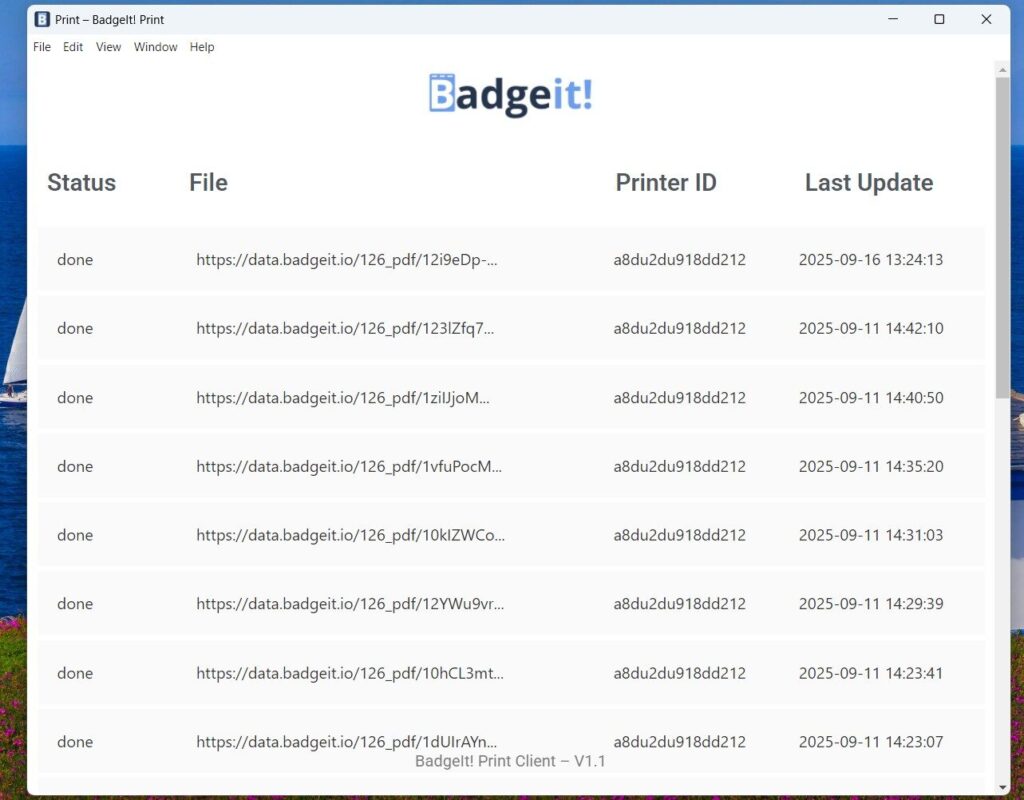
The printing client is now ready to be used.
⚠️Never close the printing client. If the client is closed, print jobs will not be sent to the printer. Minimize the window if required.
- If a print error occurs (e.g., “no response”), it likely means the app is closed or did not receive the job.
- The printing client app requires a constant internet connection.