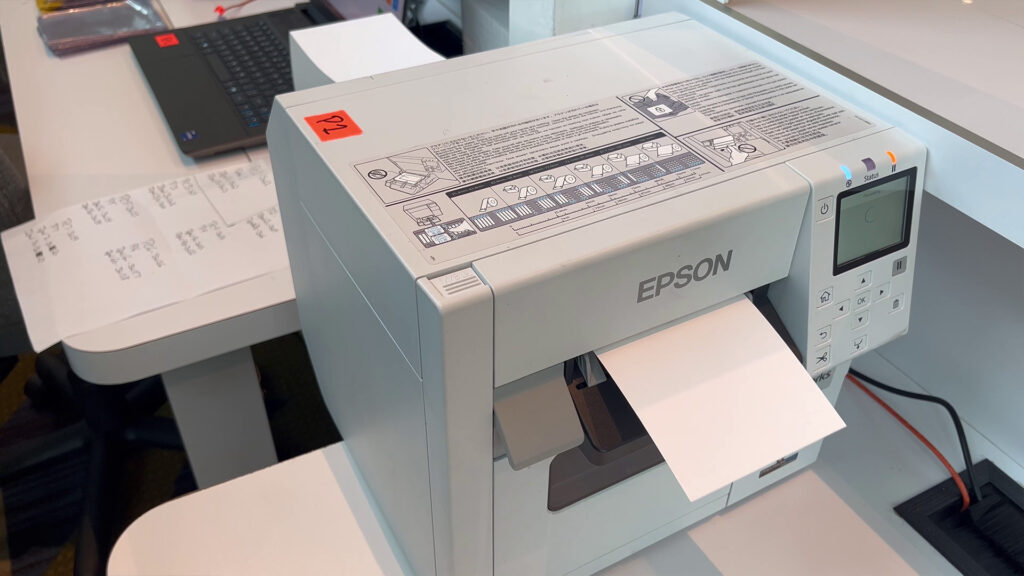
Introduction #
Sometimes, the printer can fail to detect the paper type correctly:
- It either fails immediately as it loads the paper,
- or sometimes fails when the printer starts printing the first badge and can’t figure out where the page starts.
If media detection fails and displays an error message
1 – Clear printer queue #
Check that the print queue is empty in the BadgeIt print client.
If you are not sure, restart the BadgeIt print server computer, and stop / restart the printer
2 – Run Simple Media Detect calibration #
Head to the menu of the printer by selecting Menu with the arrows and pressing OK
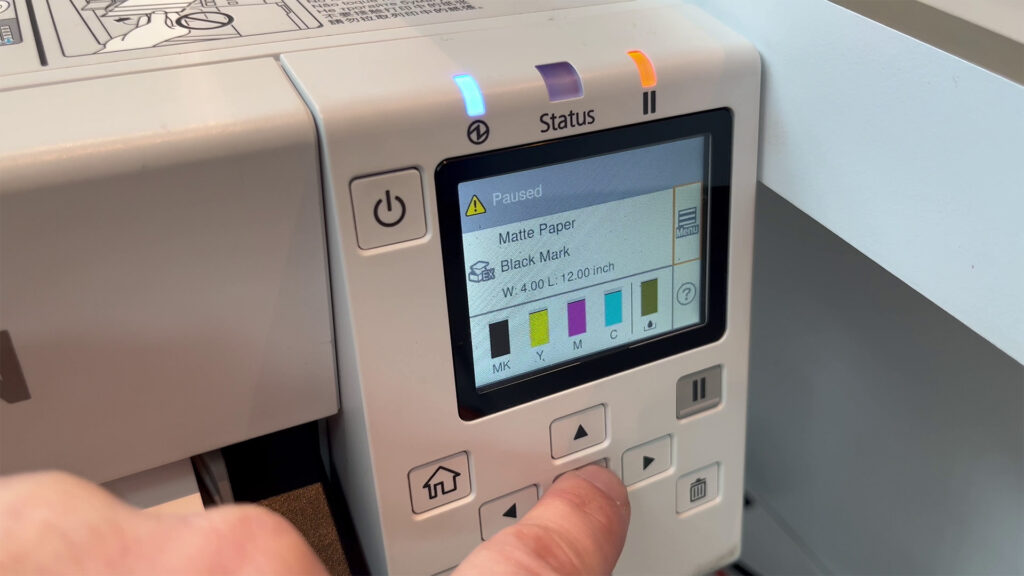
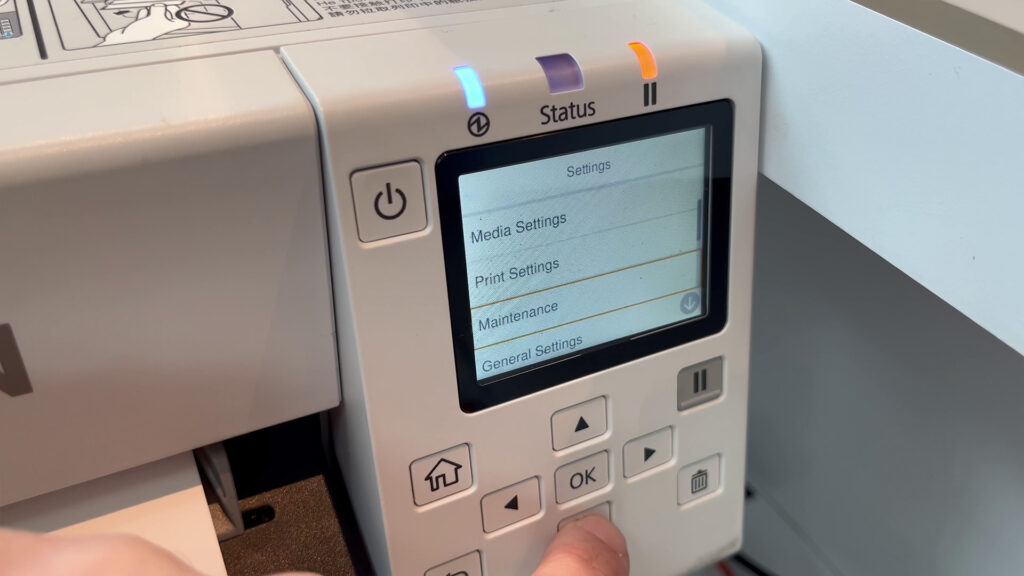
Navigate to Maintenance
Navigate to Calibration
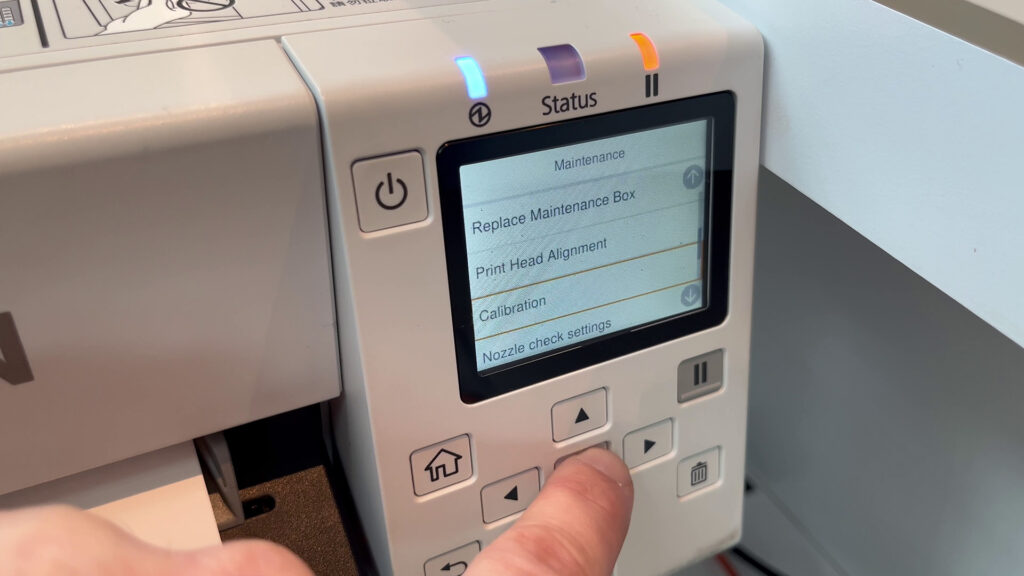
Press “Simple Media Detect”
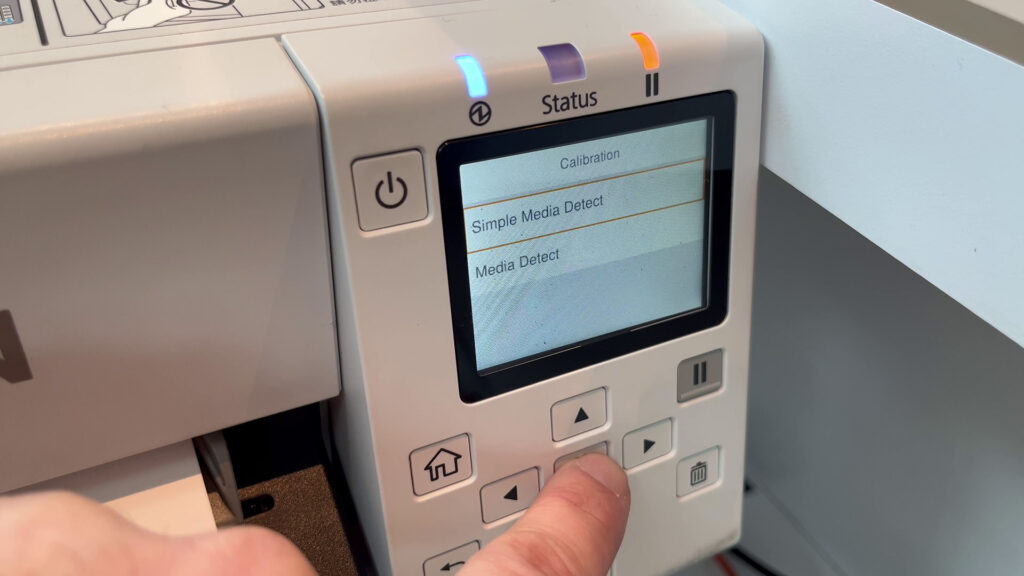
Calibration will start
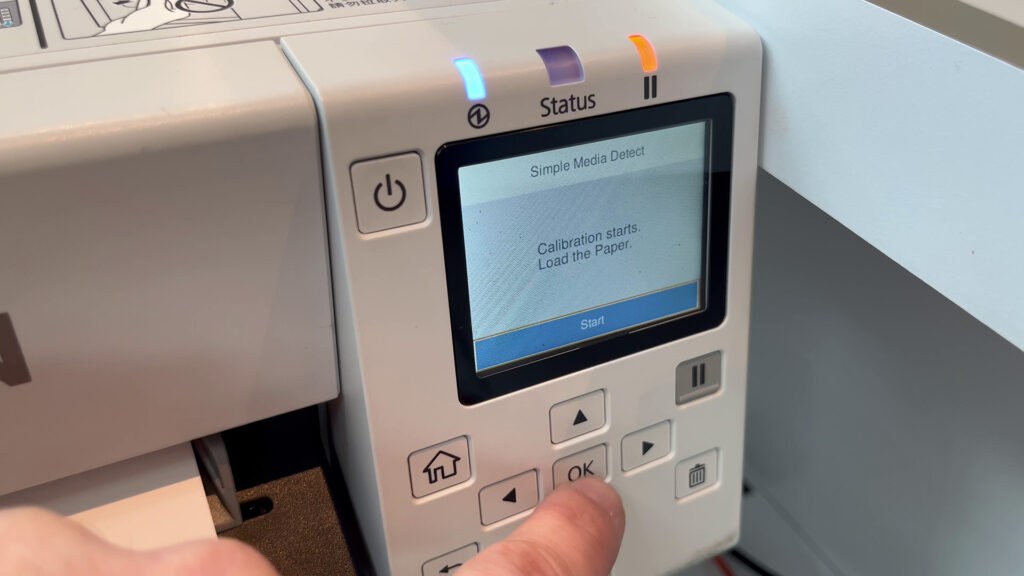
Press Start and let it run
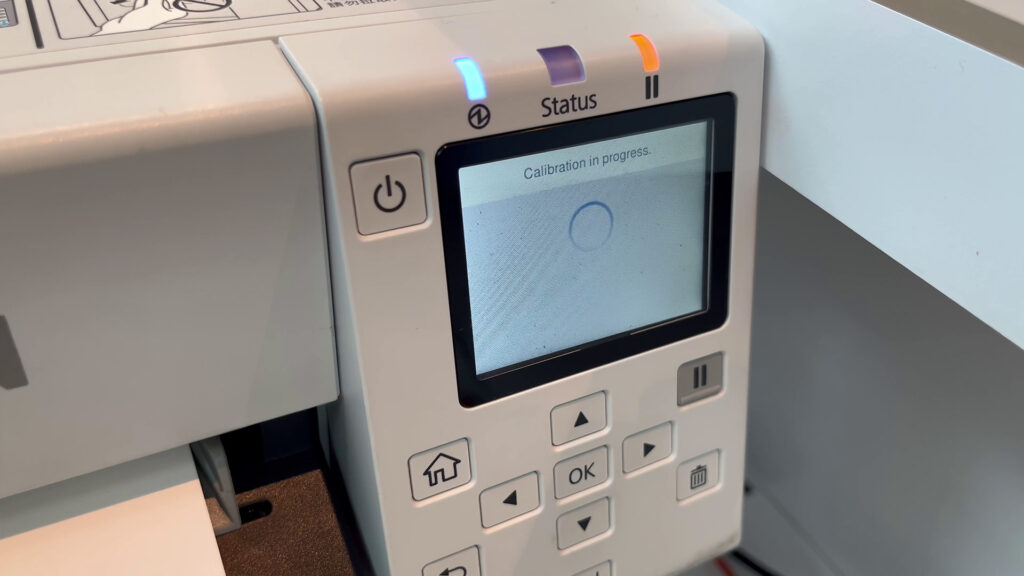
At this stage, calibration will either succeed or fail.
3 – Run it again if it fails #
If you get an error message saying that Calibration failed, repeat the same exact steps 2 or 3 times, since it usually solves the issue
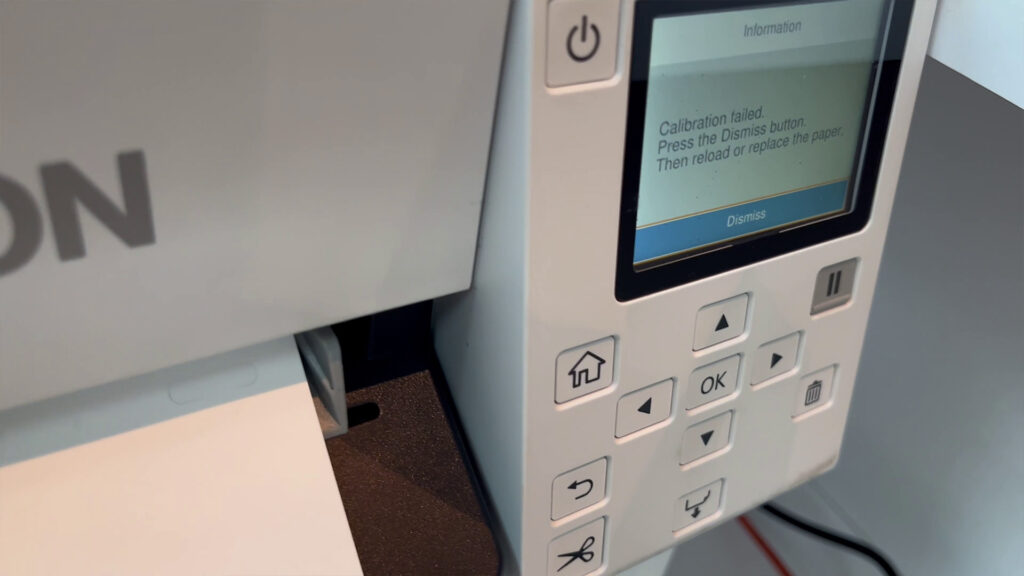
4 – Run regular Media Detect calibration if all fails #
If Calibration still fails after a few attempts, repeat those steps but this time, choose “Media Detect” instead of “Simple Media Detect”.
5 – When calibration succeeds #
Once you don’t get the error message, it means that calibration is successful.
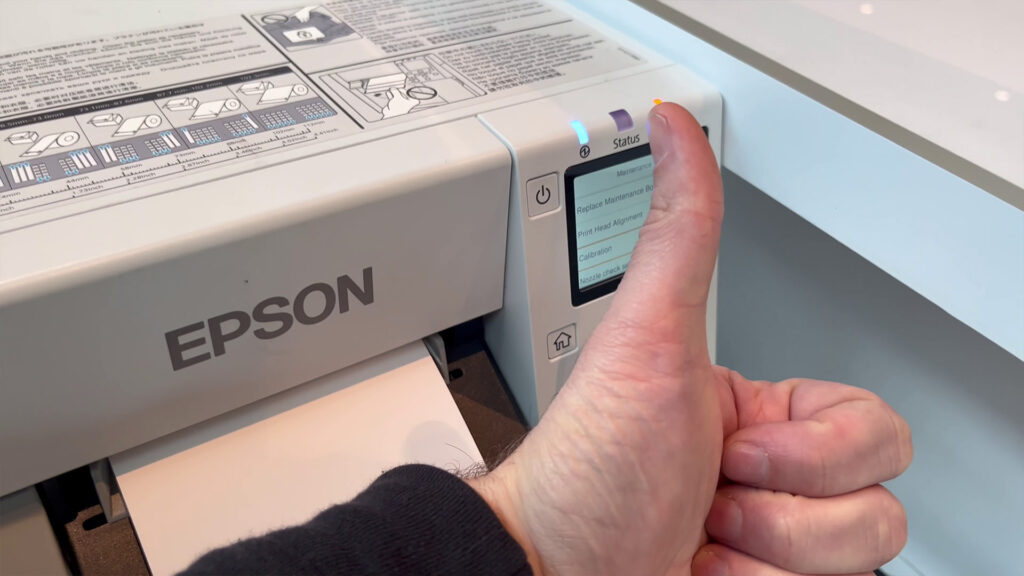
Open the back of the printer, and pull the the paper from the back. Re-stack it nicely on the stack it came from.
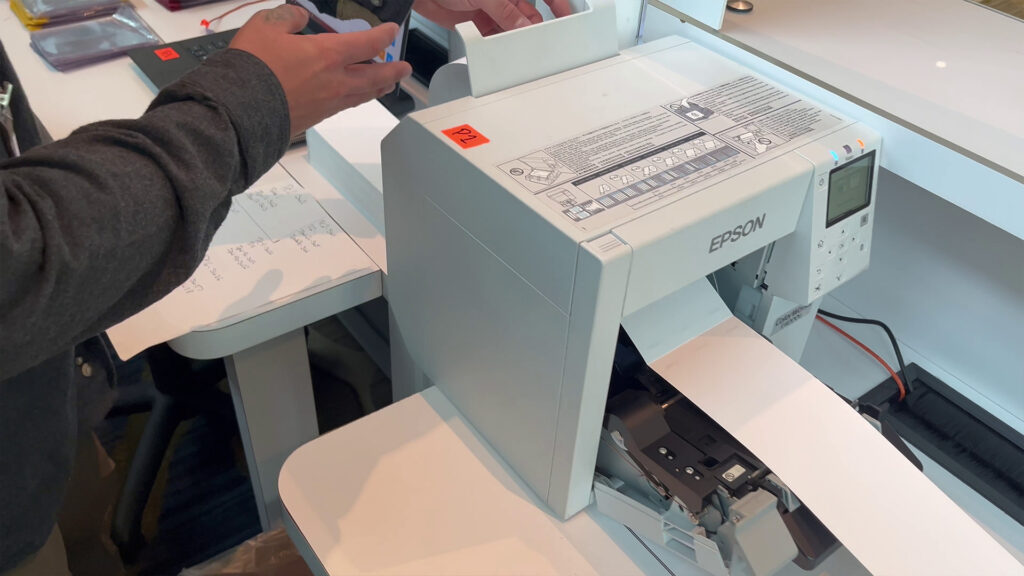
Close the front, then perform the paper loading procedure.
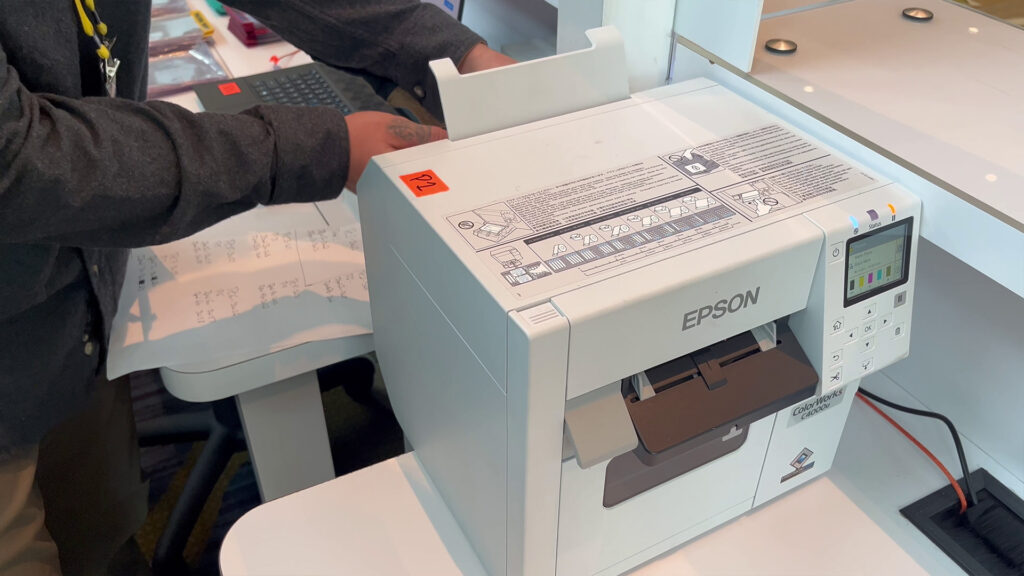
Advance the paper (refer to the regular printer setup procedure) and you’re good to go!