
BadgeIt provides matte, 4×12 fanfold paper that dries quickly.
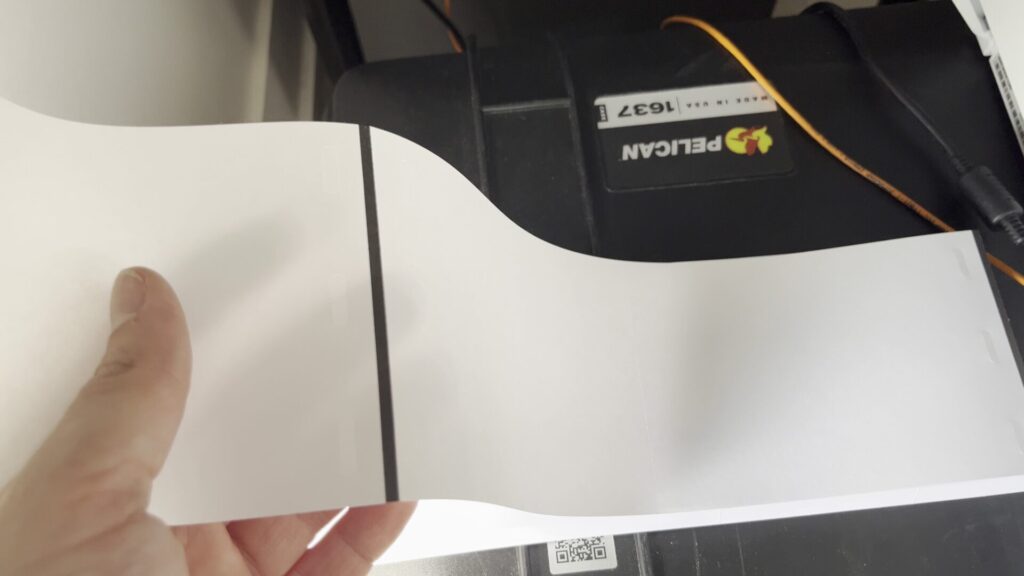
To prepare the paper stacks for loading, make sure the black marks on the paper are on the bottom side when fed into the printer.
In other words, you should not see the black marks when looking at the stack from the top, but you should see a black mark when you lift the first sheet from the stack.
Please see pictures for an illustration.
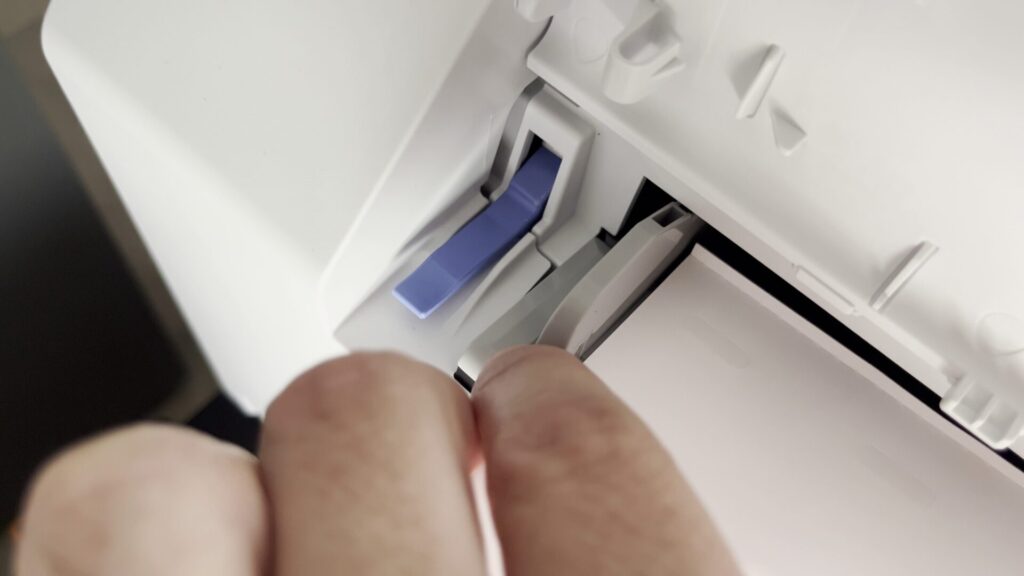
Paper Guide Adjustment: Open the back of the printer and use the handle to unlock and adjust the paper guide width. The guide is meant only to guide the paper, not hold it back, so a small gap (about a millimeter) should be left on the side.
To adjust the guide width, lift the blue handle, move the guides leaving a 1mm space around the paper, and press it down to lock in the position.
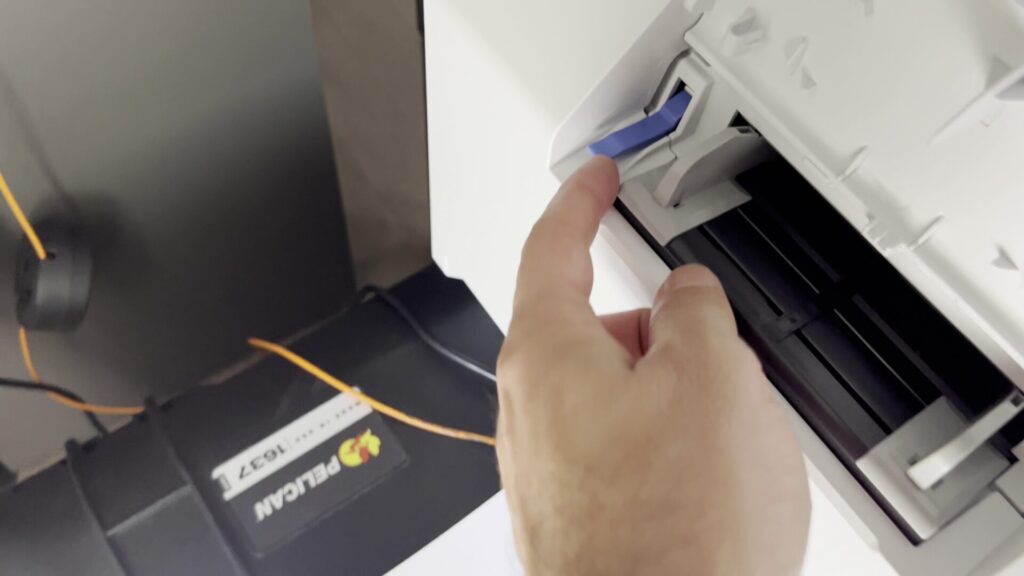
⚠️The guide is meant only to guide the paper, not hold it back, so a small gap (about a millimeter) should be left on the side.
Do not insert the paper just yet, check if the printer is ready first. If it is, it will display a message saying “Load Paper”.
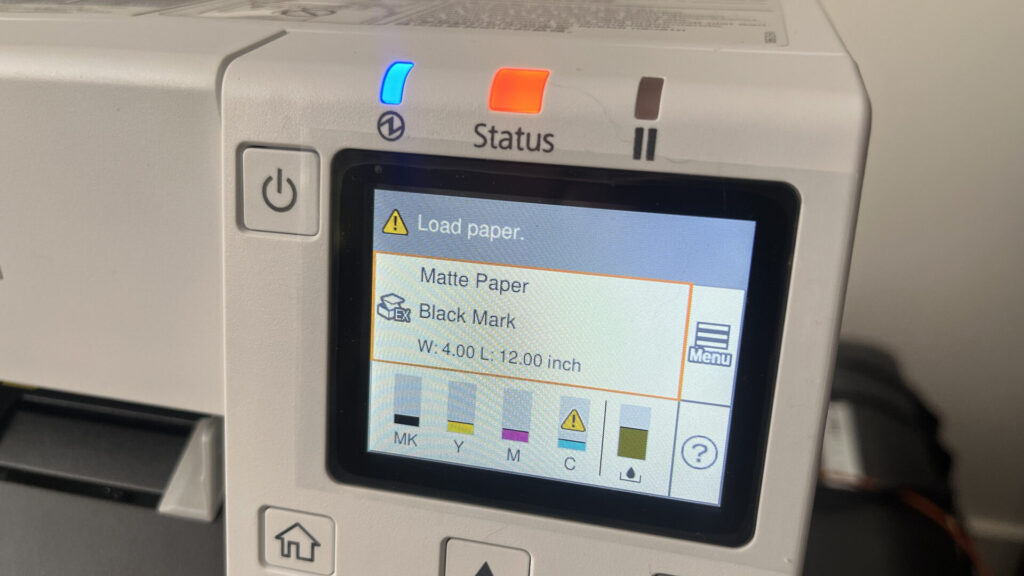
⚠️If the printer is not ready, it probably went into Pause mode. Press the Pause button to resume operations and check that the printer displays “Load paper”.
Insert the paper by sliding it in slowly, without forcing anything. The printer will automatically take in and hold the paper. You will hear the fan turn on.
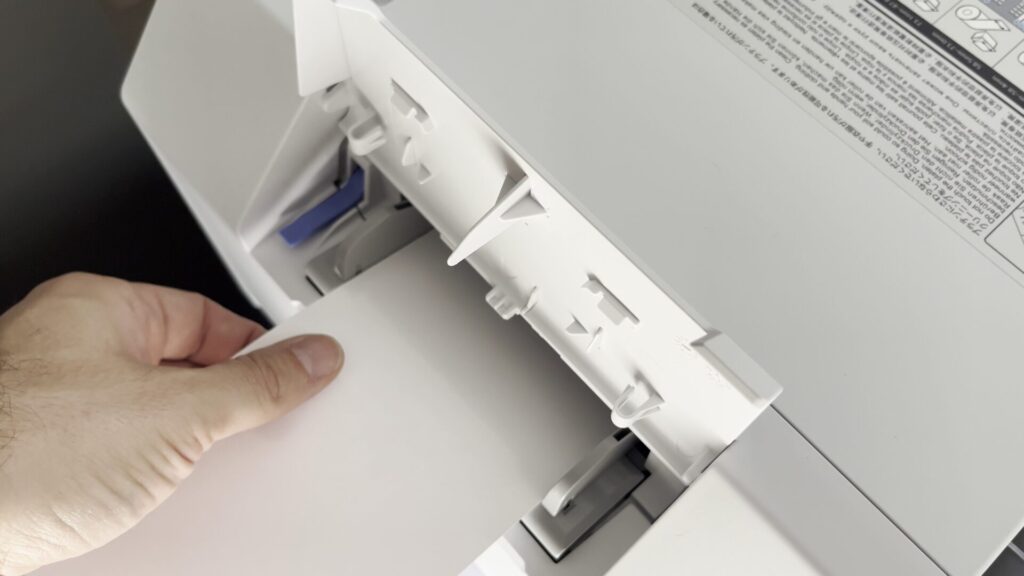
Aligning the paper stack: Once the printer starts ingesting the paper, close the flap.
The stack of fanfold paper must be aligned so that the paper comes in straight. If the paper rubs against the guide, it can slow down and cause a paper jam.
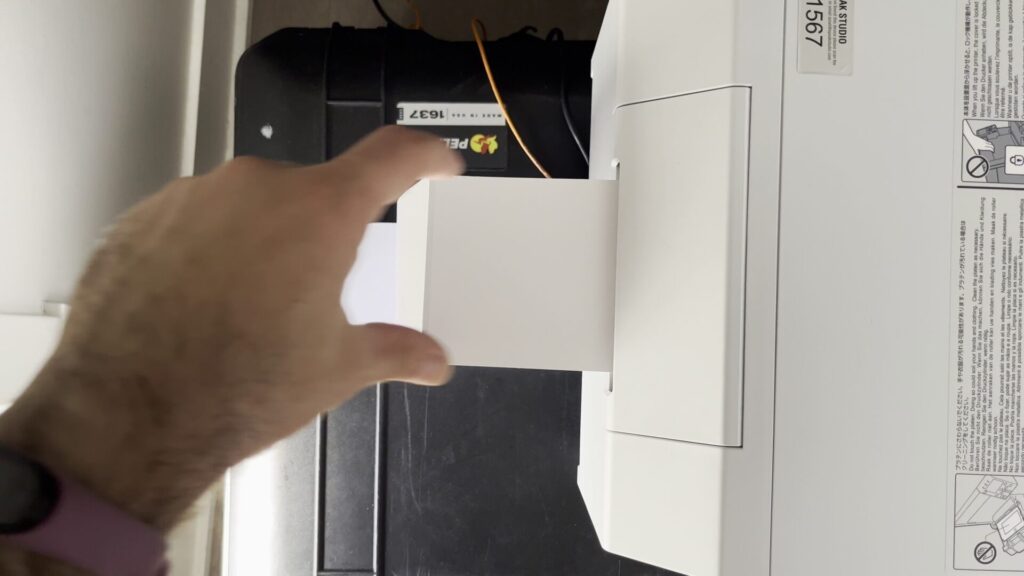
Advancing the Paper: After the paper is taken in, the screen may say “paused”. Press the “Pause” button to resume operations.
⚠️It might take a while for the screen to update. Wait, and the printer will feed out the first page.
⚠️Do Not Pull Paper: The first page is not cut, because it was used to adjust the printer. Do not pull paper that is held by the printer, as this can cause misalignment, leading to a paper jam.
If that happens, you need to open the printer, remove the paper, and start all over again.
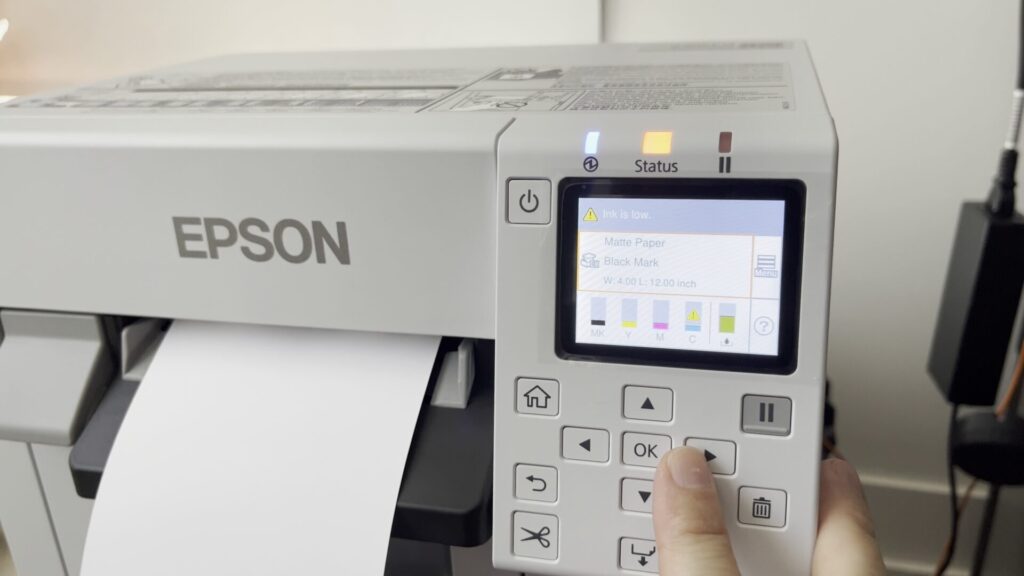
Ink Message: If an “ink low” message appears, you can usually keep printing until the printer says you can’t print anymore.
⚠️It is recommended to keep printing, in order to use up all the ink before disposing of the cartridges, to minimize waste.
ℹ️ You can prepare the replacement cartridges and keep them near the printer, for a quick and easy swap as soon as the old ones run out.